Running Google Ads without linking it to Google Analytics is like driving at night with no headlights.
In reality, most businesses run both platforms, yet very few connect them. They spend on ads, get clicks, but without proper tracking in place, it’s unclear which campaigns, keywords, or audiences led to calls.
Google Ads and Analytics integration fixes that by connecting your ad data with on-site user behaviour, conversions, and customer actions in one place. At Matter Solutions, we’ve helped Australian businesses get both platforms connected and build clearer reporting around campaigns.
In this article, we’ll explain:
- What you need before you integrate
- Linking both platforms, step by step
- Where your Google Ads data appears
- How conversion tracking shifts once connected
Let’s begin with why the integration is worth setting up first.
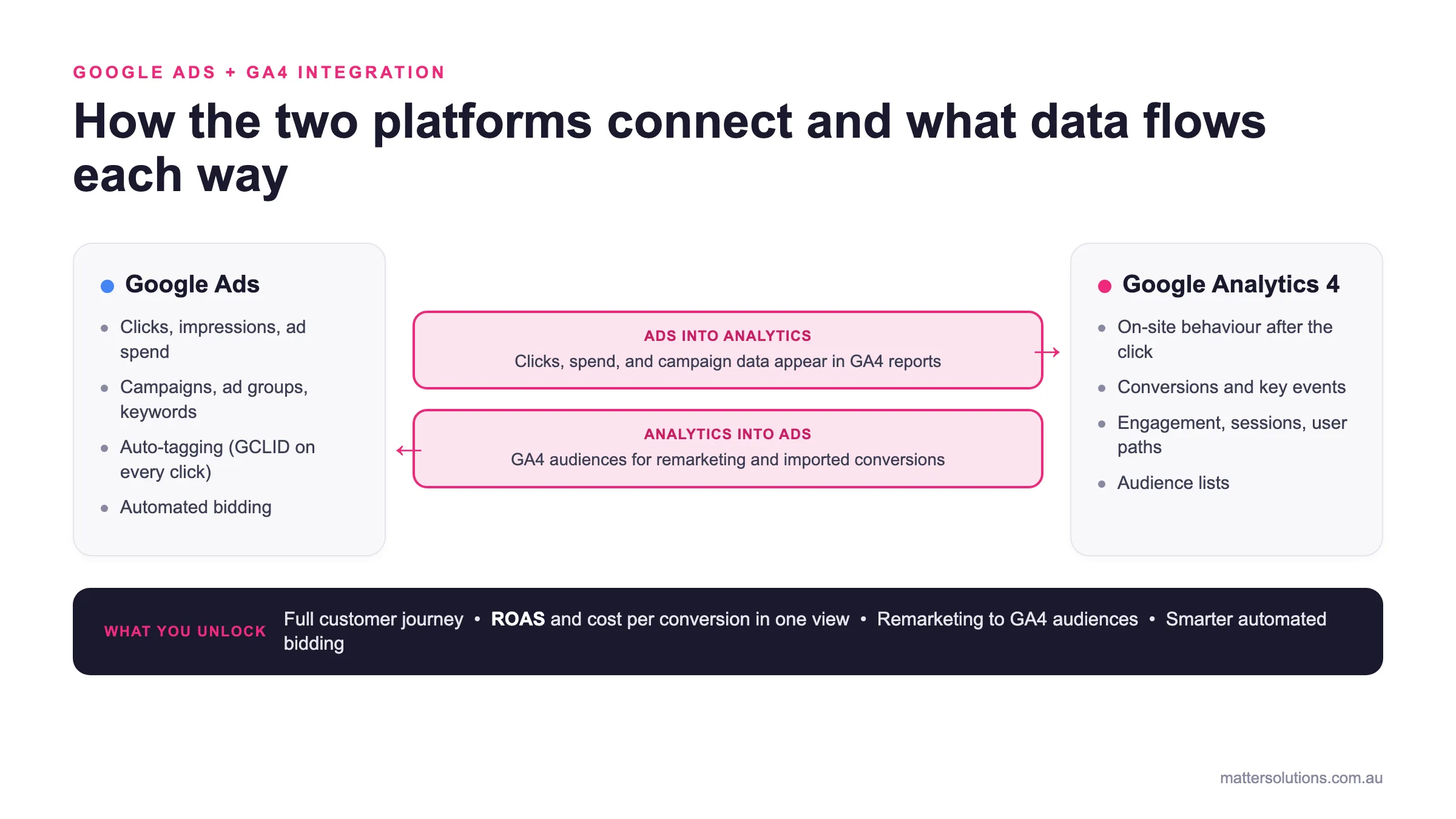
Google Ads + GA4 integration
How the two platforms connect and what data flows each way
Google Ads
- Clicks, impressions, ad spend
- Campaigns, ad groups, keywords
- Auto-tagging (GCLID on every click)
- Automated bidding
Ads into Analytics →
Clicks, spend, and campaign data appear in GA4 reports
← Analytics into Ads
GA4 audiences for remarketing and imported conversions
Google Analytics 4
- On-site behaviour after the click
- Conversions and key events
- Engagement, sessions, user paths
- Audience lists
What you unlock: Full customer journey • ROAS and cost per conversion in one view • Remarketing to GA4 audiences • Smarter automated bidding
How Google Ads and GA4 connect: ad data flows into Analytics, GA4 audiences and conversions flow back into Google Ads.
Google Ads and Analytics Integration: Why Should You Link Them
Google Ads shows you clicks, while Analytics covers on-site behaviour after them. When you link the accounts, Google Ads data moves into Analytics, and Analytics data feeds back into Google Ads.
Here’s what that looks like in practice.
Getting a Full View of the Customer Journey
The clearest benefit is seeing the complete customer journey. It begins at the first interaction, like form submissions, and ends with bookings, purchases, or phone enquiries on your website. In this situation, Google Ads shows what drove the click, and Analytics shows what users did after arriving.
Without the integration, you can only see which ads attract traffic, but not the campaigns that lead to conversions, longer engagement, or valuable customer actions.
Google Ads Metrics Now Visible Inside Your Analytics Account
Once linked, far more Google Ads data shows up inside Analytics than most teams expect. These are what you’ll find:
- Clicks, Impressions, and Ad Spend: All three appear directly in GA4 reports, so you can check cost data without switching platforms. You also get spend, impressions, and cost per click in one place.
- ROAS and Marketing Performance: Return on ad spend and conversion data appear alongside metrics like bounce rate, session duration, pages visited, and completed actions.
- Campaign Access for Whole Teams: Anyone with Analytics access can check Google Ads metrics directly. As a result, your teams can access everything without a separate Google Ads login.
With everything in one reporting view, it becomes much easier to compare ad spend against user behaviour and identify which campaigns are generating meaningful results.
Remarketing: Using GA4 Audiences in Your Google Ads Campaigns
Beyond visibility, the integration opens up another option: remarketing. Once linked, you can send GA4 audiences into Google Ads and build audience lists based on specific user behaviour.
Take a user who viewed a product page, added something to their cart, or spent time on a service page without completing a purchase or enquiry. GA4 places those users into an audience list and allows Google Ads to show them more relevant follow-up ads. It keeps ad spend focused on people already interested, which helps improve ROI.
What You Need Before You Connect Google Ads to Analytics
Before you can link the two accounts, you need the correct level of access on each platform. Most people skip the access check entirely, and halfway through the setup, they hit an error. But if you confirm access before you start, you can avoid most of the delays.
This is what to check before you begin.
Admin Access and Permissions: Who Can Do This?
Linking your Google Analytics account to Google Ads needs specific access on both sides. Without that access, the accounts simply won’t appear in the selection screen when you try to connect them. Below you’ll see how to get started:
- In Google Analytics: Here, you’ll need Editor or Administrator access at the property level to create and manage the integration between GA4 and Google Ads. Users with Viewer or Analyst permissions cannot set up the link.
- In Google Ads: Standard and read-only roles do not have permission to complete the setup in Google Ads. Instead, the account requires Administrative access so you can approve the connection and manage data sharing between platforms.
- For Manager Accounts: Linking a Google Ads manager account applies the integration across all connected child accounts. This allows Analytics conversion and audience data to flow into each linked campaign account automatically.
The earlier you confirm access, the faster the setup goes. If you’re not the admin on either account, flag it early and loop in whoever is.
Matching Your Google Ads Account to the Correct Analytics Property
Connecting each Google Ads account to the correct analytics property keeps data clean. Each account should link to the Google Analytics property tracking the same website. And multiple Google Ads accounts can share a single analytics property, up to 400 links. Because of that, analytics features stay consistent across all of them.
Linking a Google Ads manager account basically counts as one link and covers all individual Google Ads accounts underneath it.
Step-by-Step Process to Connect Google Ads to Your Analytics Property
You can link Google Ads to your analytics property without ever leaving it, as the setup lives inside your Google Analytics Admin panel. We’ve set this up across accounts for over a decade, and the permission step is where delays almost always begin.
However, if you keep both accounts open in the same browser session, the linking process takes only minutes. The payoff on marketing ROI starts the moment both tools begin sharing data.
Let’s see how to do it, step by step.
Finding Google Ads Links in Your Analytics Admin Panel
Before Google Ads and Analytics can share conversion and audience data, the two platforms need to be connected inside your GA4 property settings. The setup only takes a few minutes once you know where the linking option is located, so follow these steps:
- Sign in to Google Analytics and click Admin in the bottom-left corner of the screen
- In the property column, scroll down to Product Links
- Click Google Ads Links (you’ll see existing connections appear here, each as a single line in the admin section)
- To create a new connection, click the blue Link button at the top of the screen.
Make sure you’re signed into the correct Google account with Editor access before you start. Without edit permission at the property level, the Google Ads Links option simply won’t appear.
Selecting Your Account, Enabling Auto-Tagging, and Completing the Link
From here, you’ll select your Google Ads account, enable auto-tagging, and submit the link. Most setups skip the auto-tagging step entirely, and it’s the one that causes attribution problems further down the line. These are the steps:
- Click the Link button and choose Google Ads Accounts
- Select your account from the list
- Check for the correct Customer ID and click Confirm.
- On the configuration screen, enable auto-tagging (it appends a GCLID to every ad URL for accurate tracking)
- Configure settings if needed, then click Submit to complete the link.
With auto-tagging active, GA4 connects every session to the ad click that started it. On the other hand, if auto-tagging is disabled, Analytics cannot properly attribute users to specific campaigns, which leaves gaps in your reporting data.
Confirming the Connection Inside the Google Ads Interface
You need to complete the steps for linking Google Analytics to Google Ads only once. Once you submit the link, a green confirmation message will appear in the Admin panel, and the process will be complete.
After connecting everything, new data from your Google Ads account will start flowing into Google Analytics within 24 to 48 hours (so don’t panic about the delay). If data doesn’t appear after 48 hours, there are two things to check.
First, confirm that you’ve left auto-tagging on in your Google Ads account. Second, verify the link status shows as active in the Admin panel. In most cases, one of those two is the issue.
Once Connected: Where Your Google Ads Data Shows Up in Analytics
After linking, Google Ads data shows up in a few different places inside Google Analytics, and the most obvious starting point is the Acquisition section. But the fuller report is buried a few clicks deep in Explorations.
Here’s where to find all the data.
The Acquisition Overview Report: What It Shows After You Link
The Acquisition Overview is the first place to look once both accounts are connected. Inside, a dedicated Google Ads campaigns card pulls through campaign-level performance data from your linked account. You’ll see sessions, key events, and engagement rate are all visible here, and GA4 groups each one by campaign name.
To view Google Ads campaigns in more detail, click through the card. The full report opens with additional filters, and you can use Google Analytics reports to track performance across your website.
Filtering Google Ads Data by Ad Group Name and Campaign
Inside the full Ads report, you can filter Google Ads data by campaign, ad group, or keyword. Each one narrows the view down to what you need:
- Campaign Name and Ad Group: You can view performance by individual campaign and ad group directly in Analytics, without switching into Google Ads. This lets you compare which parts of your account are driving traffic and conversions in one place.
- Keyword-Level View: When combined with ad group data, it helps you identify which messages and targeting are actually working. Also, filter reports by keyword to see which search terms bring users to your site.
- Multiple Campaigns: If you’re running several campaigns at once, you can compare them side by side in Analytics to quickly see which ones are generating the strongest results.
This way, instead of looking at isolated metrics, you’ll understand how campaigns, ad groups, and keywords work together to drive results.
Google Ads Analysis in Explorations: What You Can Build
Most people stop at the Acquisition Overview in Google Analytics. However, Explorations are where you get genuinely useful analysis. It lets you build custom reports that combine on-site behaviour data like conversions, engagement, and user paths.
You can also break down conversions by campaign, keyword, device type, and landing page on your website. Across the client accounts we manage, Explorations consistently surfaces performance data that the standard Google Ads interface misses completely.
Conversion Tracking After Integration
Most people assume conversion tracking in Google Ads updates automatically once you connect the accounts (it doesn’t). You still need to select and import the specific GA4 conversions you want Google Ads to track and optimise for.
Once you import those conversions, Google Ads can use them for reporting and automated bidding. Here, GA4 and Google Ads use different attribution models, so the conversion counts across both platforms often won’t match.
Take a look at what changes once you complete that import.
Importing Analytics Conversions into Your Google Ads Account
To import GA4 conversions, go to Goals and then Conversions inside your Google Ads interface. After that, click Import, select Google Analytics 4 Properties, and choose the key events to track as conversion actions.
This table will tell you the difference between how the tracking works:
| Feature | Native Google Ads Conversions | Imported GA4 Conversions |
| What it tracks | Actions directly tied to ad clicks | Post-click user behaviour on your website |
| Data source | Google Ads tag | Google Analytics 4 property |
| Where tracking occurs | Within the Google Ads platform | Inside your website + GA4 events |
| Attribution model | Usually last-click within Ads | Data-driven (or GA4 attribution settings) |
| Best for | Bid optimisation and ad-level reporting | Understanding the full user journey and behaviour |
| Conversion examples | Click-to-call, form submit, purchase (from Ads tag) | Purchases, enquiries, engagement events, multi-step conversions |
| Limitations | Doesn’t show full on-site behaviour | Requires proper setup and linking with Google Ads |
| Strength | Fast, ad-focused optimisation | Deeper insight into user intent and journey |
The process takes a few minutes, and conversion tracking inside Google Ads updates once you finish the import.
Native conversions track ad clicks, while imported GA4 conversions track what users do after clicking. And together, they show both which ads generate the clicks and what those users do on your site.
Tracking ROAS and Cost Per Conversion After You Link
Once you import conversions, ROAS, and cost per conversion become visible inside GA4 alongside your campaign data. For the first time, you can see clearly how ad spend connects to on-site results.
To give you a perspective, Google’s own data shows that linked accounts correlate with a 23% rise in conversions and a 10% drop in cost per conversion (those aren’t small gains). It’s because the combined view helps identify which campaigns improve conversion rates and which ones only drive traffic volume. So, budget decisions that improve ROI become much clearer.
Automated Bidding After Integration: What GA4 Feeds Into Google Ads
Richer conversion signals from GA4 give Google’s automated bidding more to work with. The more conversion data flowing from Analytics, the better the algorithm understands which users are worth targeting.
In this case, Google’s bidding algorithm reads user behaviour data from GA4 to decide where to place ads. Without that analytics data, the algorithm works from a smaller signal pool and bids less efficiently. That gap shows up in your costs and conversion rates over time.
Ultimately, better inputs lead to better bids, and the integration with GA4 gives Google Ads more of both.
All Linked Up: Let Your Google Ads Data Speak Clearly
The Google Ads and Analytics connection is one of the highest-impact setups a business can make in digital marketing. The steps are quick, and the data advantages keep building over time through clearer attribution, better conversion tracking, and more accurate campaign optimisation.
The whole setup only becomes clear once conversion data flows correctly between Google Ads and Analytics. We’ve worked with Australian businesses on setups like this since 2008, and linked accounts always drive better campaign insights than those operating without the connection.
If you haven’t linked your accounts yet, Matter Solutions helps businesses connect their data so marketing decisions are based on real performance, instead of guesswork. Our team works with clients across industries to improve visibility, leads, and long-term growth.
Get in touch with us to see how a properly connected setup can improve your campaign results.
Frequently Asked Questions about Google Ads and Analytics Integration
After completing the integration, a few questions might come up as you start reviewing your data. These are the most common ones we see from clients getting set up for the first time.
How Long Does Google Ads Data Take to Show Up in Analytics?
Once you create and link both accounts, new data appears in your Google Analytics reports within 24 to 48 hours. You don’t need to do anything in the meantime. However, if nothing shows after 48 hours, check that auto-tagging is on and the link is active.
Can I Link Multiple Google Ads Accounts to One Analytics Property?
Yes. Multiple Google Ads accounts, including individual Google Ads accounts and a manager account, can all link to a single analytics property. Each property supports up to 400 links, and a manager account link covers all ad accounts underneath it.
Does Removing the Google Ads Link Affect My Data?
Historical data stays in your Google Analytics account, but new data stops flowing between both platforms. Google Ads dimensions return as ‘not set’ for new sessions on your site, and remarketing audiences stop updating for Google Ads users.
Why Do Conversion Counts Look Different in Google Ads and Analytics?
Both platforms use different attribution models. For instance, Google Analytics 4 defaults to data-driven, while Google Ads uses last click. The difference causes conversion totals to vary across both platforms, which is normal and expected.
Need help with your digital marketing?
Book a free strategy call and let's discuss your goals.
Book a Strategy Call